
The username will always be user@domainname.com and you can go in and change the username to one of the custom domains that you’ve defined in your Azure AD tenant.
The Authentication contact info is used in user authentication scenarios. You can set the administrator and authentication email and phone or the user can do that as part of their self-service password reset.
Lastly, you want to make sure you set the usage location to a specific country. Since the company I work for is located in the US only I have our tenant setup to where an end-user cant login unless they are inside the US. In addition, not all Microsoft Licensing is available in all countries, and group licensing will fail until you set the usage location for all your users.
You can create a user and turn on the Multifactor authenticator. You can assign a role to a specific end-user. Under the audit logs, you can see the activity related to any specific user and see a record of their sign-ins.
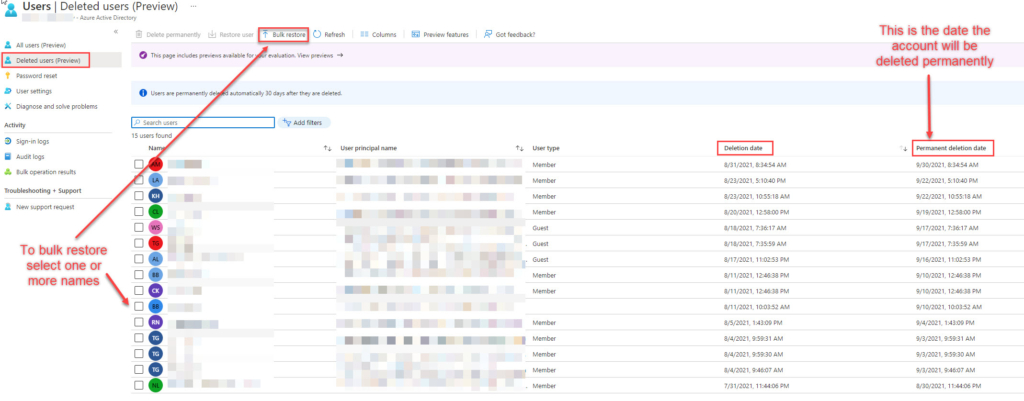
Inside Azure AD, there is a deleted users area. When a user is deleted it’s a soft delete their licenses are released back to the pool immediately. The user can be recovered in 30 days. I can select a user and restore the user if we wish or perform a bulk restore.
Under Deleted users lies Password Reset. Here you can set the properties for multifactor authentication which is highly highly recommended and a must for any Azure AD Environment!
Just as an FYI to enable SSO across Azure AD and on-prem AD you must configure password writeback in Azure AD. Password writeback is used to synchronize password changes in Azure AD back to the on-prem AD DS environment and it is required to support Azure AD Self-Service Password reset in the synchronized identity model.
