This is accomplished from within the Microsoft 365 Admin Center.
Log in to the Microsoft 365 Admin center: https://admin.microsoft.com/Adminportal
- Select Admin
- Click on the waffle in the upper left corner.
- If the Admin app does not appear click on “All Apps”.
- Click on the Admin app.
- Select the Exchange Admin Center,
- On the left, you may need to click on “Show All”
- Scroll down until you locate the “Admin Center” section.
- Click on “Exchange”
- Select “spam filter”

- Under the “protection” section click on “spam filter”
- Select yourdomain.com
- Double Click on yourdomain.com

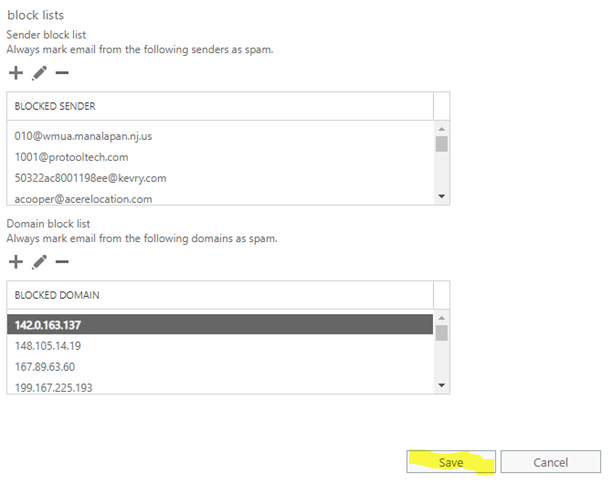
- Select block list and add the email address (username@domain.tdl)
- Click on blocklists

- Click on the plus sign

- Add the email address
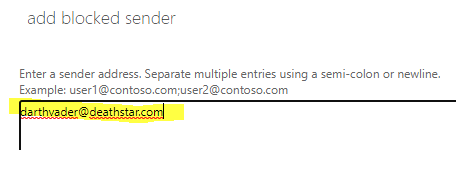
- Click OK on the bottom of the screen.
- Save and you are done!