Inside of Azure AD you will find Security Groups and O365 Groups help secure files, folders, apps, and store user membership info
Security Groups– are used for Granting access to resources such as Sharepoint Sites they are easy for the Administrator because the admin will only need to administer to the group rather than adding users to each resource individually. (Us system admins we HATE granting permissions to each resource individually)
O365 Group– Automate the creation and permissions in one place and allow admins to apply policies at the actual group level.
When an O365 Group is created the following resources are created automatically: A shared Outlook inbox, a shared calendar, a SharePoint document library, A planner, a Power Bi module, possibly a space in Yammer and if the group is created in Teams a Team will be created. Even if the group is created in Teams only the shared Outlook inbox and all of the other resources will still be created. O365 groups do not support nesting within other O365 Groups or with Distribution or Security groups.
Distribution Groups – Are used for sending notifications to a group of people. They can receive email and can be upgraded to an O365 group.

So if we go into Azure AD and take a look at some of our groups we can tell that this group is static. It can be changed to a Dynamic Group to automate population to a group based on a person’s role, department, or any other feature you want to assign to the group.

Press Add dynamic query and in the next box, you can select what you would like to query. In this example I’m creating a group for everyone who works in the Accounting department.

This coupled with Group-Based licensing is powerful for automatic O365 licensing. This will give a hands-free experience when configuring new users.
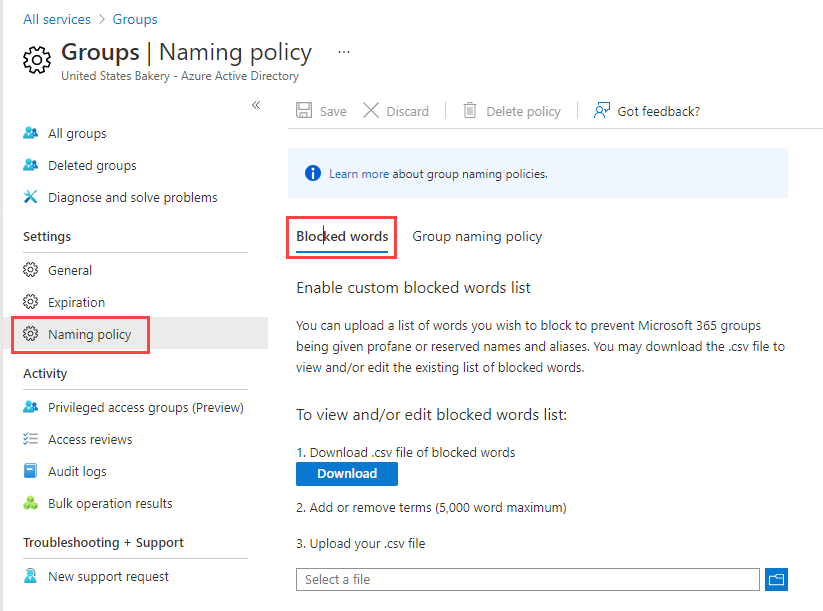
If you go to Groups-> Naming Policies there are a couple of features. You can create prefix or suffix policies or block specific words. A blocked word list has to be a comma-separated list of phrases to be blocked in group names and aliases. An exact match between the group name and any of the custom blocked words will trigger a filter. Blocked words are not case sensitive, when a user attempts to enter a blocked word as part of a group name they see an error message right along with the blocked words, there are no character restrictions on blocked words, and there’s a limit of 5000 phrases that can be configured in a blocked words list.